In today’s cloud-first world, spinning up an EC2 instance with Docker is a fundamental DevOps task. However, many tutorials skip the critical security hardening steps that separate a development playground from a production-ready system. This comprehensive guide walks you through creating a secure, Docker-enabled EC2 instance using both Infrastructure as Code (IaC) and manual security configurations.
We’ll cover everything from VPC setup to IMDSv2 enforcement, demonstrating how to build infrastructure that’s both functional and fortified against common attack vectors. This setup implements AWS security best practices, container security hardening, and comprehensive monitoring - essential skills for any DevOps engineer working with containerized applications in the cloud.
Architecture Overview
Our secure Docker infrastructure includes these critical security components:
- Hardened VPC with proper network segmentation and private subnets
- Security Groups following least privilege principles with zero SSH exposure
- IAM Roles for secure AWS service access without hardcoded credentials
- Systems Manager for secure shell-less management and remote access
- CloudWatch Agent for comprehensive monitoring and alerting
- IMDSv2 enforcement for metadata security and SSRF protection
- Docker & Docker Compose with security best practices and runtime protection
- KMS encryption for EBS volumes and data at rest
- VPC Endpoints for secure AWS service communication
Prerequisites
Before we begin, ensure you have:
- AWS CLI configured with appropriate IAM permissions
- Terraform installed (v1.0+ recommended for IaC approach)
- Basic understanding of VPC networking and security groups
- SSH key pair created in your target AWS region
Infrastructure as Code Setup
This section demonstrates how to build a production-ready, secure Docker environment using Terraform. Each component is designed with security-first principles and follows AWS Well-Architected Framework guidelines.
1. VPC and Network Security Configuration
Our network foundation implements defense in depth with proper subnet segregation and secure routing:
File: vpc.tf
# VPC Configuration with DNS support for proper resolution
resource "aws_vpc" "main" {
  cidr_block           = var.vpc_cidr
  enable_dns_hostnames = true
  enable_dns_support   = true

  tags = {
    Name        = "${var.project_name}-vpc"
    Environment = var.environment
    Project     = var.project_name
  }
}

# Internet Gateway for public subnet internet access
resource "aws_internet_gateway" "main" {
  vpc_id = aws_vpc.main.id

  tags = {
    Name = "${var.project_name}-igw"
  }
}

# Public Subnet - hosts NAT Gateway only, no direct EC2 exposure
resource "aws_subnet" "public" {
  vpc_id                  = aws_vpc.main.id
  cidr_block              = var.public_subnet_cidr
  availability_zone       = data.aws_availability_zones.available.names[0]
  map_public_ip_on_launch = true

  tags = {
    Name = "${var.project_name}-public-subnet"
    Type = "public"
  }
}

# Private Subnet - hosts EC2 instances with no direct internet access
resource "aws_subnet" "private" {
  vpc_id            = aws_vpc.main.id
  cidr_block        = var.private_subnet_cidr
  availability_zone = data.aws_availability_zones.available.names[0]

  tags = {
    Name = "${var.project_name}-private-subnet"
    Type = "private"
  }
}

# NAT Gateway with Elastic IP for secure outbound internet access
resource "aws_eip" "nat" {
  domain = "vpc"

  tags = {
    Name = "${var.project_name}-nat-eip"
  }
}

resource "aws_nat_gateway" "main" {
  allocation_id = aws_eip.nat.id
  subnet_id     = aws_subnet.public.id

  tags = {
    Name = "${var.project_name}-nat-gateway"
  }

  depends_on = [aws_internet_gateway.main]
}

# VPC Endpoints for Systems Manager - enables private AWS service access
resource "aws_vpc_endpoint" "ssm" {
  vpc_id              = aws_vpc.main.id
  service_name        = "com.amazonaws.${var.aws_region}.ssm"
  vpc_endpoint_type   = "Interface"
  subnet_ids          = [aws_subnet.private.id]
  security_group_ids  = [aws_security_group.vpc_endpoints.id]
  private_dns_enabled = true

  tags = {
    Name = "${var.project_name}-ssm-endpoint"
  }
}

resource "aws_vpc_endpoint" "ssm_messages" {
  vpc_id              = aws_vpc.main.id
  service_name        = "com.amazonaws.${var.aws_region}.ssmmessages"
  vpc_endpoint_type   = "Interface"
  subnet_ids          = [aws_subnet.private.id]
  security_group_ids  = [aws_security_group.vpc_endpoints.id]
  private_dns_enabled = true

  tags = {
    Name = "${var.project_name}-ssm-messages-endpoint"
  }
}
This configuration creates a secure network foundation with proper subnet segregation - public subnets only host NAT Gateway, while private subnets host your applications with no direct internet exposure.
2. Security Groups - Zero Trust Network Access
Our security groups implement least privilege access with zero SSH exposure:
File: security_groups.tf
# Security Group for VPC Endpoints
resource "aws_security_group" "vpc_endpoints" {
  name_prefix = "${var.project_name}-vpc-endpoints-"
  vpc_id      = aws_vpc.main.id
  description = "Security group for VPC endpoints"

  ingress {
    from_port   = 443
    to_port     = 443
    protocol    = "tcp"
    cidr_blocks = [var.vpc_cidr]
    description = "HTTPS from VPC for AWS service communication"
  }

  egress {
    from_port   = 0
    to_port     = 0
    protocol    = "-1"
    cidr_blocks = ["0.0.0.0/0"]
  }

  tags = {
    Name = "${var.project_name}-vpc-endpoints-sg"
  }
}

# Security Group for EC2 Instance - NO SSH PORT 22 EXPOSED
resource "aws_security_group" "ec2_sg" {
  name_prefix = "${var.project_name}-ec2-"
  vpc_id      = aws_vpc.main.id
  description = "Security group for Docker-enabled EC2 instance"

  # Outbound traffic for updates and Docker pulls
  egress {
    from_port   = 0
    to_port     = 0
    protocol    = "-1"
    cidr_blocks = ["0.0.0.0/0"]
    description = "Outbound internet access for updates and Docker"
  }

  # HTTP traffic from VPC only
  ingress {
    from_port   = 80
    to_port     = 80
    protocol    = "tcp"
    cidr_blocks = [var.vpc_cidr]
    description = "HTTP from VPC"
  }

  # HTTPS traffic from VPC only
  ingress {
    from_port   = 443
    to_port     = 443
    protocol    = "tcp"
    cidr_blocks = [var.vpc_cidr]
    description = "HTTPS from VPC"
  }

  tags = {
    Name = "${var.project_name}-ec2-sg"
  }

  lifecycle {
    create_before_destroy = true
  }
}
Critical Security Note: We deliberately DO NOT open SSH (port 22) - instead, we use AWS Systems Manager for secure, auditable access without SSH keys or bastion hosts.
3. IAM Roles - Least Privilege Access Control
Our IAM configuration follows least privilege principles with specific, minimal permissions:
File: iam.tf
# IAM Role for EC2 Instance with minimal required permissions
resource "aws_iam_role" "ec2_role" {
  name = "${var.project_name}-ec2-role"

  assume_role_policy = jsonencode({
    Version = "2012-10-17"
    Statement = [
      {
        Action = "sts:AssumeRole"
        Effect = "Allow"
        Principal = {
          Service = "ec2.amazonaws.com"
        }
      }
    ]
  })

  tags = {
    Name = "${var.project_name}-ec2-role"
  }
}

# Systems Manager Core Policy - enables SSM without SSH
resource "aws_iam_role_policy_attachment" "ssm_core" {
  role       = aws_iam_role.ec2_role.name
  policy_arn = "arn:aws:iam::aws:policy/AmazonSSMManagedInstanceCore"
}

# CloudWatch Agent Policy - enables monitoring and logging
resource "aws_iam_role_policy_attachment" "cloudwatch_agent" {
  role       = aws_iam_role.ec2_role.name
  policy_arn = "arn:aws:iam::aws:policy/CloudWatchAgentServerPolicy"
}

# Instance Profile for attaching role to EC2
resource "aws_iam_instance_profile" "ec2_profile" {
  name = "${var.project_name}-ec2-profile"
  role = aws_iam_role.ec2_role.name
}
This IAM setup provides secure access to AWS services without storing credentials on the instance, following AWS security best practices for container workloads.
4. EC2 Instance - Security-First Configuration
Our EC2 configuration implements multiple security layers including IMDSv2 enforcement and encrypted storage:
File: ec2.tf
# KMS Key for EBS encryption - ensures data at rest security
resource "aws_kms_key" "ebs_key" {
  description             = "KMS key for EBS encryption - ${var.project_name}"
  deletion_window_in_days = 7

  tags = {
    Name = "${var.project_name}-ebs-key"
  }
}

# Launch Template with security hardening
resource "aws_launch_template" "main" {
  name_prefix   = "${var.project_name}-lt-"
  description   = "Launch template for secure Docker-enabled EC2"
  image_id      = data.aws_ami.amazon_linux.id
  instance_type = var.instance_type

  vpc_security_group_ids = [aws_security_group.ec2_sg.id]

  iam_instance_profile {
    name = aws_iam_instance_profile.ec2_profile.name
  }

  # User data script for automated secure setup
  user_data = base64encode(templatefile("${path.module}/user_data.sh", {
    region                 = var.aws_region
    project_name           = var.project_name
    docker_compose_version = "v2.39.3"
  }))

  # CRITICAL: IMDSv2 enforcement prevents SSRF attacks
  metadata_options {
    http_endpoint               = "enabled"
    http_tokens                 = "required" # Enforces IMDSv2
    http_put_response_hop_limit = 2
    instance_metadata_tags      = "enabled"
  }

  # Encrypted EBS volume with KMS
  block_device_mappings {
    device_name = "/dev/xvda"
    ebs {
      volume_size           = var.root_volume_size
      volume_type           = "gp3"
      encrypted             = true
      kms_key_id            = aws_kms_key.ebs_key.arn
      delete_on_termination = true
    }
  }

  tags = {
    Name        = "${var.project_name}-instance"
    Environment = var.environment
    Project     = var.project_name
  }

  lifecycle {
    create_before_destroy = true
  }
}
5. Automated Security Hardening Script
Our user data script implements comprehensive security hardening and Docker configuration:
File: user_data.sh
#!/bin/bash
# Secure EC2 Setup with Docker Compose
# Implements security best practices and monitoring
set -euo pipefail

LOG_FILE="/var/log/user-data-setup.log"
DOCKER_COMPOSE_VERSION="${docker_compose_version}"
AWS_REGION="${region}"

# Logging function with timestamps
log() {
  echo "[$(date '+%Y-%m-%d %H:%M:%S')] $*" | tee -a "$LOG_FILE"
}

log "Starting secure EC2 setup with Docker..."

# System updates with retry logic for reliability
log "Updating system packages..."
retry 10 6 yum update -y

# Install essential security and monitoring packages
log "Installing required packages..."
yum install -y \
  yum-utils \
  device-mapper-persistent-data \
  lvm2 \
  amazon-cloudwatch-agent \
  htop \
  curl \
  wget \
  unzip

# Docker installation with security configurations
log "Installing Docker with security hardening..."
amazon-linux-extras enable docker
yum install -y docker
systemctl start docker
systemctl enable docker
usermod -aG docker ec2-user

# Docker Compose installation
log "Installing Docker Compose..."
mkdir -p /usr/local/lib/docker/cli-plugins
curl -SL "https://github.com/docker/compose/releases/download/${DOCKER_COMPOSE_VERSION}/docker-compose-linux-x86_64" \
     -o /usr/local/lib/docker/cli-plugins/docker-compose
chmod +x /usr/local/lib/docker/cli-plugins/docker-compose

# Docker daemon security configuration
log "Configuring Docker daemon security..."
mkdir -p /etc/docker
cat > /etc/docker/daemon.json << EOF
{
  "live-restore": true,
  "userland-proxy": false,
  "log-driver": "json-file",
  "log-opts": {
    "max-size": "10m",
    "max-file": "3"
  },
  "storage-driver": "overlay2",
  "no-new-privileges": true
}
EOF

systemctl restart docker

# CloudWatch Agent configuration for monitoring
log "Configuring CloudWatch monitoring..."
cat > /opt/aws/amazon-cloudwatch-agent/etc/amazon-cloudwatch-agent.json << 'EOF'
{
  "agent": {
    "metrics_collection_interval": 60,
    "run_as_user": "cwagent"
  },
  "metrics": {
    "namespace": "SecureEC2/Metrics",
    "metrics_collected": {
      "cpu": {
        "measurement": ["cpu_usage_idle", "cpu_usage_user", "cpu_usage_system"],
        "metrics_collection_interval": 60
      },
      "disk": {
        "measurement": ["used_percent"],
        "metrics_collection_interval": 60,
        "resources": ["*"]
      },
      "mem": {
        "measurement": ["mem_used_percent"],
        "metrics_collection_interval": 60
      }
    }
  },
  "logs": {
    "logs_collected": {
      "files": {
        "collect_list": [
          {
            "file_path": "/var/log/messages",
            "log_group_name": "/aws/ec2/secure",
            "log_stream_name": "{instance_id}"
          }
        ]
      }
    }
  }
}
EOF

# Start CloudWatch Agent
/opt/aws/amazon-cloudwatch-agent/bin/amazon-cloudwatch-agent-ctl \
  -a fetch-config -m ec2 -s \
  -c file:/opt/aws/amazon-cloudwatch-agent/etc/amazon-cloudwatch-agent.json

log "Secure EC2 Docker setup completed successfully!"
For the complete implementation details, including additional Terraform modules, security policies, and advanced configurations, visit the full repository at: github.com/ridwansukri/secure-ec2-docker
Deployment Instructions
Using Terraform (Recommended for Production)
Step 1: Initialize Terraform Environment
# Initialize Terraform with required providers
terraform init

# Validate configuration syntax
terraform validate
Step 2: Plan Your Infrastructure
# Create execution plan and review security settings
terraform plan -var="project_name=secure-docker-prod" -var="environment=production"
Step 3: Deploy Secure Infrastructure
# Apply configuration with automatic approval
terraform apply -var="project_name=secure-docker-prod" -var="environment=production" -auto-approve
Step 4: Secure Access via Systems Manager
# Connect without SSH keys or bastion hosts
aws ssm start-session --target <instance-id> --region <your-region>
Manual Setup Alternative
If Infrastructure as Code isn’t available in your environment:
- Create VPC and Subnets through AWS Console with proper CIDR blocks
- Configure Security Groups with zero SSH exposure and least privilege rules
- Create IAM Role with Systems Manager and CloudWatch permissions
- Launch EC2 Instance in private subnet with security hardened AMI
- Configure IMDSv2 post-launch for metadata security
Post-Deployment Security Verification
IMDSv2 Enforcement Verification
# Connect via Systems Manager (secure method)
aws ssm start-session --target <instance-id>

# Test IMDSv2 (should work - secure method)
TOKEN=`curl -X PUT "http://169.254.169.254/latest/api/token" -H "X-aws-ec2-metadata-token-ttl-seconds: 21600"`
curl -H "X-aws-ec2-metadata-token: $TOKEN" http://169.254.169.254/latest/meta-data/

# Test IMDSv1 (should fail - vulnerable method blocked)
curl http://169.254.169.254/latest/meta-data/
Docker Security Configuration Verification
# Verify Docker daemon security settings
sudo cat /etc/docker/daemon.json

# Test Docker Compose functionality
docker compose version

# Verify container security options
docker run --rm -it --security-opt no-new-privileges alpine sh
CloudWatch Monitoring Verification
# Check CloudWatch Agent status
sudo /opt/aws/amazon-cloudwatch-agent/bin/amazon-cloudwatch-agent-ctl -m ec2 -a query-config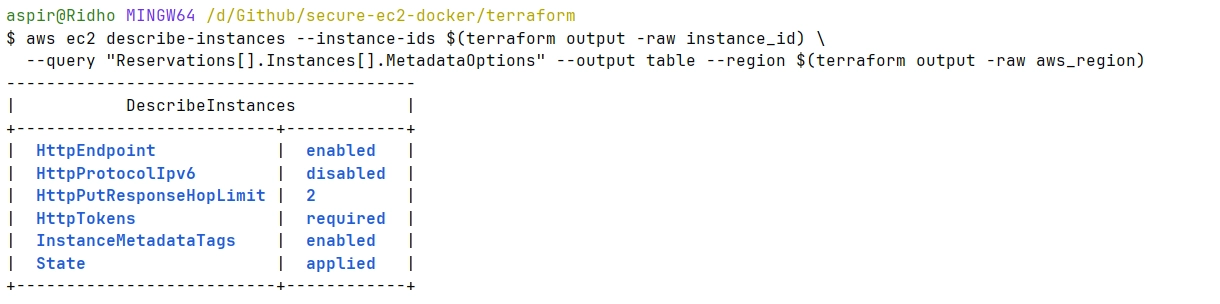
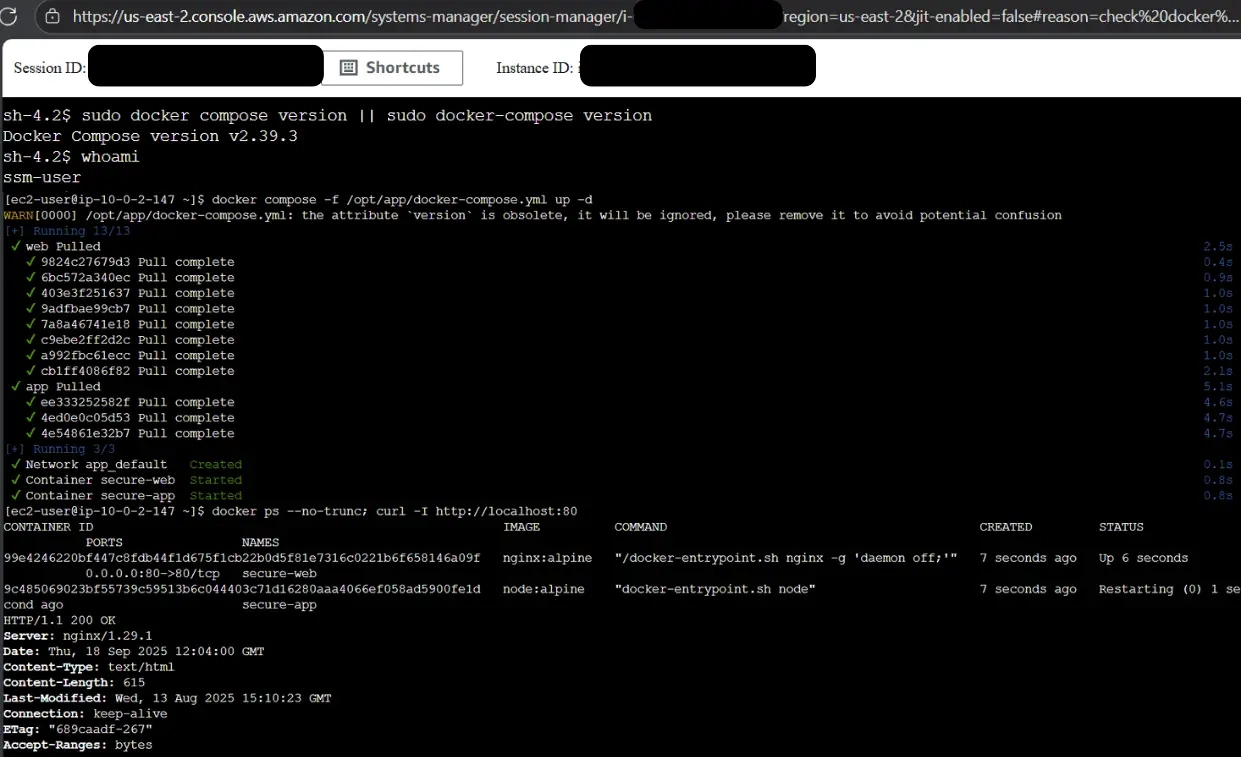 Two screenshots showing AWS Describe Instance and Systems Manager Docker session.
Security Best Practices Implementation
This setup implements comprehensive security measures across multiple layers:
Network Security
- Private subnet deployment with no direct internet access
- NAT Gateway for controlled outbound internet access
- Security groups following least privilege with zero SSH exposure
- VPC Endpoints for secure AWS service communication
- Network ACLs for additional subnet-level protection
Instance Security
- IMDSv2 enforcement preventing SSRF and metadata attacks
- Encrypted EBS volumes using customer-managed KMS keys
- Systems Manager access eliminating SSH key management
- Automated security updates via user data script
- Comprehensive logging to CloudWatch for audit trails
Container Security
- Docker daemon hardening with security-focused configuration
- Non-privileged containers with security options enforcement
- Read-only filesystems where possible to prevent tampering
- Resource limits to prevent resource exhaustion attacks
- Security scanning integration ready for CI/CD pipelines
Access Management
- IAM roles instead of hardcoded access keys
- Least privilege principle with minimal required permissions
- No credential storage on instances
- Audit logging for all administrative actions
Monitoring and Operational Excellence
CloudWatch Integration
- Custom metrics for application and infrastructure monitoring
- Log aggregation from multiple sources (system, application, Docker)
- Alerting setup for security and performance thresholds
- Dashboard creation for operational visibility
Maintenance and Updates
- Automated patching via Systems Manager Patch Manager
- Security scanning integration with Amazon Inspector
- Backup automation for EBS volumes and configuration
- Disaster recovery procedures documented
Troubleshooting Common Issues
Docker Compose Not Found
# Verify installation path
ls -la /usr/local/lib/docker/cli-plugins/docker-compose

# Reinstall if missing
sudo curl -SL "https://github.com/docker/compose/releases/download/v2.39.3/docker-compose-linux-x86_64" \
    -o /usr/local/lib/docker/cli-plugins/docker-compose
sudo chmod +x /usr/local/lib/docker/cli-plugins/docker-compose
Systems Manager Connection Failed
# Check IAM role attachment
aws ec2 describe-instances --instance-ids <instance-id> \
  --query 'Reservations[0].Instances[0].IamInstanceProfile'

# Verify SSM agent status
sudo systemctl status amazon-ssm-agent
CloudWatch Metrics Missing
# Restart CloudWatch agent
sudo /opt/aws/amazon-cloudwatch-agent/bin/amazon-cloudwatch-agent-ctl \
  -a restart -m ec2 -c file:/opt/aws/amazon-cloudwatch-agent/etc/amazon-cloudwatch-agent.json
Cost Optimization Strategies
- Use appropriate instance types (t3.medium for development, larger for production)
- Implement scheduled start/stop for development environments
- Utilize Spot Instances for non-critical workloads
- Optimize CloudWatch log retention periods
- Choose cost-effective EBS volumes (gp3 over gp2)
Production Readiness Checklist
- Network security implemented with private subnets
- IMDSv2 enforced across all instances
- Systems Manager access configured and tested
- CloudWatch monitoring active with custom dashboards
- Security groups following least privilege
- EBS encryption enabled with customer-managed keys
- Docker security hardening implemented
- Backup strategy defined and automated
- Incident response procedures documented
- Security scanning integrated into CI/CD pipeline
Conclusion
This comprehensive security guide demonstrates how to create a production-ready, secure EC2 instance with Docker Compose that implements AWS security best practices. By combining Infrastructure as Code with Terraform, security hardening, and comprehensive monitoring, you’ve built a foundation that can scale from development to production environments.
Key security achievements:
- Zero SSH exposure with Systems Manager access
- IMDSv2 enforcement preventing metadata attacks
- Encrypted storage with customer-managed KMS keys
- Network isolation with private subnet deployment
- Comprehensive monitoring with CloudWatch integration
- Container security hardening with runtime protection
This approach not only secures your infrastructure but also provides the operational visibility and security controls needed for successful DevOps practices in production environments. The combination of security-first design, Infrastructure as Code, and automated monitoring creates a robust platform for containerized applications that meets enterprise security requirements.
Remember: security is not a destination but a continuous journey. Regularly review and update your security configurations, monitor for new vulnerabilities, and maintain your patch management processes to ensure ongoing protection.
Tags: #AWS #EC2 #Docker #DevOps #Security #InfrastructureAsCode #Terraform #CloudSecurity #ContainerSecurity #ProductionReady